How to Automate Invoice Processing in QuickBooks (And Where It Falls Short)
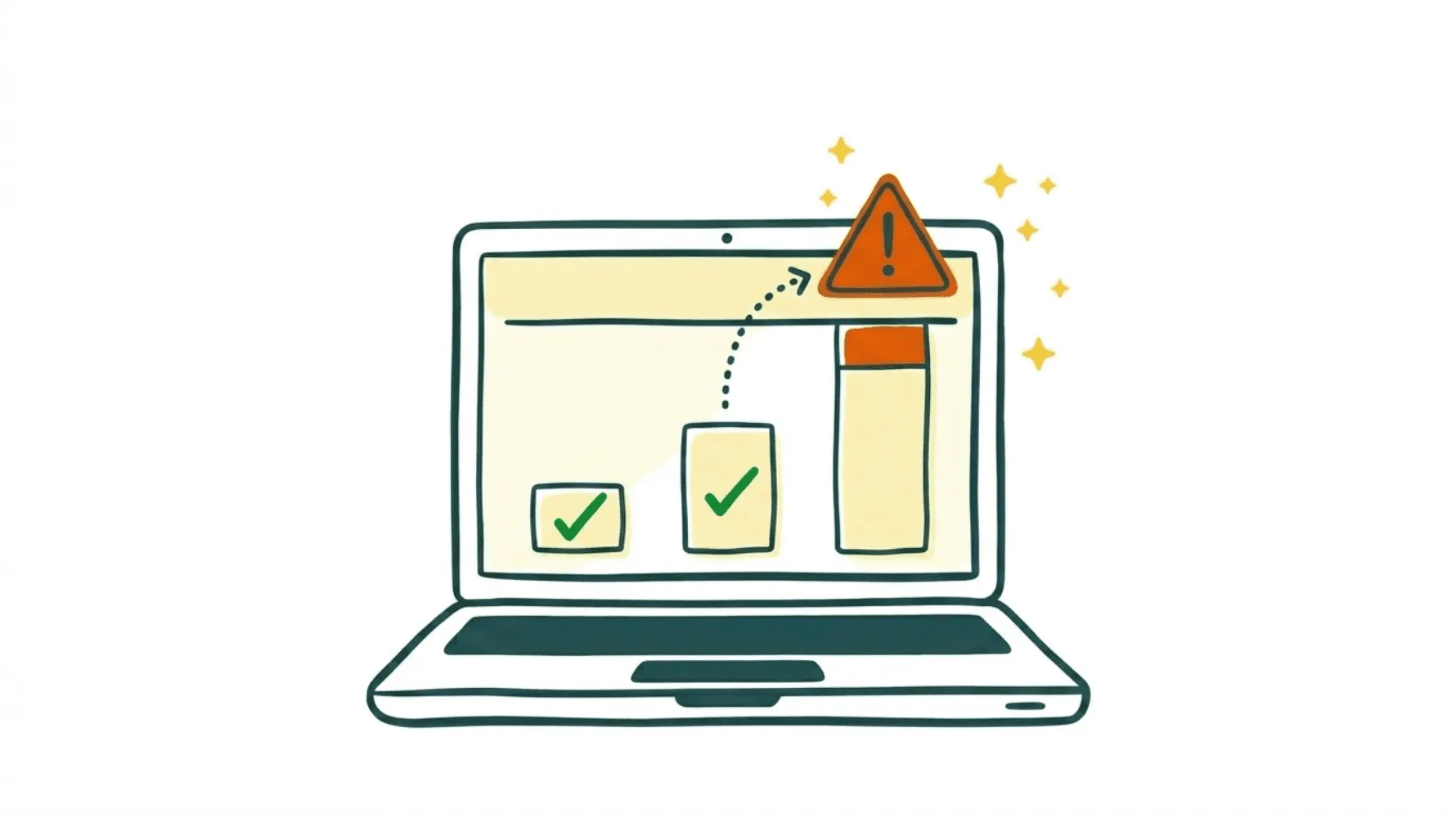
Every week, I talk to small business owners who tell me the same thing: "I thought QuickBooks would handle my invoices automatically." They set up their accounting software expecting the finance admin to just... disappear. Instead, they're still spending hours sorting through emails, uploading supplier bills by hand, and chasing people for approvals.
QuickBooks invoice processing automation is real, but it has limits that most people don't discover until they're already frustrated. At Sanso, we handle accounts payable for SMBs using AI and human operators, so we see exactly where QuickBooks stops and manual work picks up again. This post walks you through what QuickBooks can actually automate, where it breaks down, and what your options look like when you outgrow its native features.
Tired of doing your QuickBooks AP work by hand?
Sanso handles your entire invoice workflow - capture, validation, approvals, and payment tracking - so no one on your team has to.
Book a CallWhat QuickBooks Invoice Processing Automation Actually Includes
QuickBooks Online comes with several built-in features meant to reduce manual invoice work. Before jumping to third-party solutions, it's worth knowing what's already available in your subscription.
Recurring Invoices
You can set up recurring invoice templates for clients you bill on a regular schedule. QuickBooks will automatically generate and send these invoices at whatever interval you define: weekly, monthly, or custom.
For straightforward retainers or subscription billing, this works well enough. It starts to fall apart when you need:
- Multiple due dates within a single billing cycle
- Prorated amounts for mid-cycle changes
- Complex pricing structures with variable line items
- Multi-currency support for international clients
Invoice Reminders
QuickBooks can send automated payment reminders to customers with overdue invoices. You configure how many days after the due date each reminder goes out, and the system handles delivery.
The problem? These are generic email templates. When a customer writes back with "That's the wrong amount," or "Send it to our new billing entity," or "We already paid this," someone on your team still has to deal with the back-and-forth manually.
Bank Rules for Bill Matching
QuickBooks uses bank rules to categorize incoming transactions and match them against existing bills. This helps with reconciliation without manually tagging each transaction.
The matching logic is pretty basic, though. It handles straightforward vendor-to-payment relationships fine but struggles with partial payments, split invoices, or bulk payouts that combine multiple transactions into one.
Email-to-Bill Upload
QuickBooks gives you a forwarding email address where you can send supplier invoices. The system uses OCR to extract data and create bill entries.
Here's what most users discover too late: QuickBooks uploads any attachment as a bill. Forward an email with a quote, a greeting card, and an actual invoice attached, and all three become bills in your system. There's no intelligence distinguishing document types.
How to Set Up Basic Invoice Automation in QuickBooks
If you're starting from scratch, here's how to activate the automation features QuickBooks does offer.
Step 1: Configure Recurring Invoices
- Navigate to Sales > Invoices > Create invoice
- Fill in your template with the client details and line items
- Click Make recurring at the bottom
- Set the schedule (start date, interval, end date)
- Choose whether to auto-send or save as draft for review
Step 2: Set Up Payment Reminders
- Go to Settings > Account and Settings > Sales
- Under the Reminders section, enable automatic reminders
- Configure timing (e.g., 3 days before due, 7 days after due, 14 days after due)
- Customize the reminder message template
Step 3: Create Bank Rules
- Navigate to Banking > Rules
- Create rules based on vendor name, amount range, or description keywords
- Assign categories and match conditions
- Set rules to auto-categorize or suggest matches
Step 4: Enable Email Forwarding for Bills
- Go to Expenses > Bills
- Find your unique QuickBooks forwarding email address
- Forward supplier invoices to this address
- Review imported bills for accuracy (this is critical, see the limitations above)
Where QuickBooks Invoice Automation Falls Short
According to industry research, processing a single invoice manually costs around $10, while automated teams pay less than $3 per invoice. QuickBooks gets you partway there, but several gaps keep you firmly in the "still doing manual work" zone.
What if no one on your team had to manage invoices?
Sanso plugs into QuickBooks and runs finance ops in the background - from invoice capture to payment collection to reconciliation.
Book a CallNo Intelligent Document Classification
QuickBooks cannot tell the difference between an invoice, a quote, a contract, or a marketing email. Its email-to-bill feature treats every attachment as a payable bill. That creates phantom bills in your system that someone has to manually find and delete.
At Sanso, our AI analyzes every incoming email and attachment, classifying documents by type before routing only actual invoices to the accounting platform. In a recent demo, we showed an email with two attachments: one invoice and one quote. Sanso correctly identified the invoice and ignored the quote. QuickBooks would have uploaded both as bills.
Limited Approval Workflows
Unless you're on QuickBooks Enterprise (the most expensive tier), you don't get customizable approval routing. In practice, that means:
- No multi-step approvals based on invoice amount
- No department-based routing
- No automatic escalation for overdue approvals
- No audit trail showing who approved what and when
For a 10-person company processing dozens of supplier invoices monthly, this becomes a bottleneck fast.
No Supplier Portal Capture
Many suppliers don't email invoices at all. They post them to a portal. Think Amazon Business, SaaS platforms like OpenAI or Slack, utility companies, and telecom providers. Someone on your team has to log into each portal, find the billing section, download the invoice, and upload it to QuickBooks.
Sanso handles this with computer-use AI agents that autonomously log into supplier portals, navigate to billing sections, identify the correct invoices for the billing period, and download them. No human involvement required.
Disputes Kill the Automation
QuickBooks' automated reminders stop working the moment a customer responds. A reply saying "wrong amount" or "send to our new entity" sits in someone's inbox until they deal with it.
Real accounts receivable automation means handling the full resolution cycle: voiding incorrect invoices, fixing amounts, reissuing to the right entity, and following up until payment arrives. That's what Sanso's human operators actually do. They don't just send reminder emails; they manage the back-and-forth until the money lands in your account.
Scalability Breaks at Volume
QuickBooks was designed for small-business accounting, not high-volume invoice processing. Once you're handling more than 50-100 invoices per month across multiple suppliers and clients, you'll likely hit:
- Slow performance with large transaction volumes
- No batch processing capabilities
- Limited API support for recurring templates
- Manual data entry bottlenecks that compound with each new vendor
What Full Invoice Processing Automation Actually Looks Like
The gap between "QuickBooks with some automation features" and "fully automated invoice processing" is bigger than most people expect. Here's what a complete solution covers:
Accounts Payable (Getting Bills Handled)
- Automatic invoice capture from email, supplier portals, and messaging apps
- Intelligent classification so that only real invoices enter the system
- Validation before payment including duplicate detection, amount matching against POs, and VAT verification
- Supplier follow-ups for missing invoices you're expecting but haven't received
Accounts Receivable (Getting Paid)
- Invoice creation on your behalf, submitted through each customer's procurement workflow
- Real-time payment tracking across all customers
- Human follow-up on overdue invoices, not just automated emails, but actual dispute resolution
Reconciliation
- Matching incoming payments to outstanding invoices automatically
- Handling complex scenarios like marketplace payouts that bundle hundreds of orders into a single transfer
Sanso delivers all of this as a service. We plug into your existing QuickBooks (or Xero, or Pennylane) and run in the background. You don't have to learn a new system. You just see results in the tools you already use.
QuickBooks Invoice Automation vs. Outsourced Finance Operations
Here's how the approaches compare for a typical 10-person B2B company:
| Capability | QuickBooks Native | QuickBooks + Add-Ons | Sanso |
|---|---|---|---|
| Recurring invoices | Yes | Yes | Yes |
| Payment reminders | Basic templates | Enhanced templates | Human follow-up with dispute resolution |
| Invoice capture from email | Uploads all attachments (no filtering) | OCR with some classification | AI classification, only real invoices enter the system |
| Supplier portal capture | Manual | Some tools offer this | AI agents handle any portal automatically |
| Approval workflows | Enterprise tier only | Yes | Managed by Sanso operators |
| Dispute resolution | Manual | Manual | Human operators handle full cycle |
| Reconciliation | Basic bank matching | Enhanced matching | 99% automated, humans handle exceptions |
| Internal team required | Yes, someone operates it | Yes, someone configures and monitors | No, after one-time setup Sanso handles everything |
The fundamental difference: QuickBooks and add-on tools still need an internal champion to operate, configure, monitor, and handle exceptions. They automate pieces of the workflow but leave a person doing a lot of the manual work. With Sanso, the work is fully delegated, with outcome-based pricing on invoices issued, payments recovered, and purchases processed.
When to Stay with QuickBooks Native Automation
QuickBooks' built-in features are genuinely sufficient if:
- You have fewer than 20 recurring invoices per month
- Your suppliers email invoices directly (no portal downloads needed)
- You rarely deal with payment disputes
- Someone on staff can spend 5-10 hours per week on finance admin
- Your billing is straightforward: same amounts, same schedule, same currency
If that sounds like your business, maximize QuickBooks' native features before adding complexity.
When to Look Beyond QuickBooks
It may be time for a more complete solution when:
- You're spending more than 10 hours a week on invoice processing
- Supplier invoices are falling through the cracks, whether that's unbilled clients or missed vendor bills
- Payment disputes are stacking up without resolution
- You're copying invoices from supplier portals by hand
- Your finance admin is spread across the CEO, an office manager, or a part-time bookkeeper who lacks the full picture
- You're considering hiring a dedicated finance person but aren't ready for a full-time salary
This is exactly the point where Sanso tends to fit. Our pricing starts at $300/month, a fraction of a full-time hire, and scales based on actual financial operations processed.
Ready to stop spending hours on invoice admin?
Talk to the Sanso team about automating your accounts payable and receivable - setup takes minutes, not weeks.
Book a CallHow to Get Started with Sanso for QuickBooks Users
The setup takes minutes, not weeks:
- Connect your QuickBooks account. Sanso integrates directly.
- Connect your email so we can capture supplier invoices automatically.
- Tell us about your suppliers. We'll set up portal capture for those that don't email invoices.
- That's it. Sanso runs in the background from here.
After setup, you do nothing. Bills appear validated in QuickBooks. Customers get invoiced and followed up with. Payments get reconciled. You see everything in your existing tools, and nothing changes about how you access your financial data.
Frequently Asked Questions
What is QuickBooks invoice processing automation? QuickBooks invoice processing automation refers to the built-in features that reduce manual invoice work, including recurring invoices, payment reminders, bank rules, and email-to-bill forwarding. These tools handle routine tasks but still require human oversight for exceptions, disputes, and complex scenarios.
Can QuickBooks automatically capture invoices from email? Yes, QuickBooks offers an email forwarding address that uses OCR to extract invoice data. The catch is that it uploads every attachment as a bill without distinguishing invoices from quotes, contracts, or other documents. Someone still needs to review and delete non-invoice entries by hand.
What are the main limitations of QuickBooks AP automation? The biggest gaps are the lack of intelligent document classification, limited approval workflows (full routing requires Enterprise tier), no supplier portal capture, inability to handle payment disputes automatically, and scalability problems at higher invoice volumes.
How much does manual invoice processing cost per invoice? Industry research suggests manual invoice processing costs roughly $10-$15 per invoice with cycle times of 10-15 days. Automated processing can bring that down to $2-$4 per invoice with cycle times of 1-3 days.
Does QuickBooks work for accounts payable automation? QuickBooks provides basic AP features like bill entry, simple matching, and payment tracking. But it lacks the kind of advanced automation growing businesses tend to need: intelligent capture, three-way matching with purchase orders, multi-step approvals, and proactive supplier follow-ups.
What is the difference between QuickBooks automation and outsourced finance operations? QuickBooks automation gives you tools that still require someone internally to operate them. Outsourced finance operations (like Sanso) fully delegate the work, including capturing invoices, validating them, resolving disputes, and reconciling payments, so no one on your team needs to manage finance admin day to day.
Can I automate supplier portal invoice downloads with QuickBooks? No. QuickBooks has no native feature for logging into supplier websites to retrieve invoices. This has to be done manually or through a third-party solution. Sanso uses AI-powered computer-use agents that autonomously navigate supplier portals and download invoices.
How do I know if I've outgrown QuickBooks invoice automation? Common signs include spending more than 10 hours weekly on invoice processing, missing supplier bills or customer payments, unresolved disputes piling up, and relying on the CEO or an overextended team member to manage finance admin.
What integrations does Sanso support with QuickBooks? Sanso integrates directly with QuickBooks, as well as Xero, Pennylane, and Melio. After a one-time connection, Sanso operates within your existing QuickBooks environment. All bills, invoices, and reconciliation entries appear in your normal QuickBooks views.
How much does it cost to fully automate invoice processing? Third-party AP automation add-ons typically charge per-user or per-feature fees. Sanso uses outcome-based pricing starting at $300/month, based on actual financial operations processed (invoices issued, payments recovered, purchases processed) rather than seats or features.