A bank statement, an accounting export, and two different balances: Excel brings the data together to explain the difference. But you still need to compare the same period, standardize amounts, and verify transaction matches.
Bank reconciliation in Excel means matching bank statement transactions with entries in the general ledger cash account. Unmatched transactions then require review: some reflect timing differences, while others reveal omissions, duplicates, or errors that need correction.
For a small or midsize business with few transactions, a well-structured spreadsheet can organize this review. As transaction volumes grow, imports, document searches, and exception handling take more time. This six-step method helps build a reliable reconciliation and identify when connected software or a service from Sanso becomes more suitable.
Key takeaways
- Bank reconciliation compares the bank statement with the general ledger cash account as of the same date. It explains differences and identifies errors.
- Excel organizes transaction matching and discrepancy tracking. A structured file brings together transactions, their matches, and required checks.
- Identical amounts do not prove that transactions match. References, dates, and descriptions support verification.
- Formulas help with searches but do not replace discrepancy analysis. Every difference must be explained or corrected before reconciliation is complete.
- Sanso handles bank reconciliation within the business's existing tools. It automates up to 95% of the financial operations it handles, with humans handling the remaining 5%.
What Is Bank Reconciliation?
Bank reconciliation compares bank statement transactions with transactions recorded in the business's books. It checks that payments and receipts appear correctly in both sources, then explains differences as of a specific date.
A difference does not necessarily indicate an error. A check issued to a supplier can be recorded before it clears the bank. Conversely, fees deducted by the bank may be missing from the books and need to be recorded.
For a small or midsize business, this review helps identify omissions, duplicates, and incorrect amounts. Excel brings the data together, supports transaction matching, and tracks discrepancies through resolution.
Which Documents Do You Need for Bank Reconciliation in Excel?
The Excel file uses bank and accounting data covering the same period. Gather the following before starting:
👉 The bank statement, including transactions for the period and opening and closing balances.
👉 An export of the general ledger cash account, including dates, descriptions, references, and amounts.
👉 The previous reconciliation statement, to carry forward outstanding items.
👉 Supporting documents for review: invoices, transfer confirmations, deposit slips, or bank fee statements.
Previous-period discrepancies are part of the review. A check recorded last month may appear on the current statement: without carrying that item forward, its debit appears unmatched.
- Important: Also verify that exports concern the correct account and that no filters hide rows. For a reconciliation as of March 31, both sources must allow transactions and balances to be checked as of that date. An incomplete export undermines matching from the start.
How to Do Bank Reconciliation in Excel in 6 Steps
1. Create Worksheets and Organize Columns
Create three worksheets: “Bank” for statement transactions, “Books” for recorded accounting transactions, and “Reconciliation” for discrepancy tracking and balance checks.
Use a common structure in the first two worksheets:
| Column | Information to enter |
|---|---|
| ID | A unique number to identify each row |
| Date | The transaction date in the source |
| Description | A description of the payment or receipt |
| Reference | The available transfer, check, or document number |
| Signed Amount | A positive inflow or negative outflow |
| Status | To review, reconciled, or explained difference |
| Reconciliation ID | A shared reference for matched transactions |
| Comment | The explanation for the discrepancy or required action |
✅ Keep the original exports separately so you can verify the data if a spreadsheet operation changes the file.
2. Import Data and Standardize Formats
Import CSV files through Excel's Data tab. Verify that dates are recognized as dates and amounts as numbers: a cell displaying “$150.00” as text may be excluded from calculations.
Use the same convention in both worksheets: receipts are positive and payments are negative. Debit and credit labels have different meanings on bank statements and in accounting records; convert amounts according to the actual direction of the cash movement.
Remove subtotal rows from the transactions to match and verify the imported period.
💡 Sanso tip: Verify imports before investigating discrepancies. For each source, add the opening balance to transactions for the period. The result must equal the closing balance under the selected sign convention. Otherwise, check for a missing row, an amount imported as text, or an active filter before beginning matching.
3. Identify Matching Transactions
Start with references shared by both sources. Then verify the amount, description, and consistency of dates. The accounting entry date may differ from the bank transaction date.
Filters help locate a reference or amount. Formulas also speed up the work:
COUNTIFScounts rows meeting multiple criteria and flags multiple potential matches.XLOOKUPretrieves information using a reliable reference after its uniqueness has been checked.- Conditional formatting highlights transactions still requiring review.
For example, in a table named Books, this formula counts rows with the same reference and signed amount as the bank transaction:
=COUNTIFS(Books[Reference],[@Reference],Books[Signed Amount],[@[Signed Amount]])
A result of 1 indicates a potential match to verify before approval. A result greater than 1 signals multiple possibilities. An empty or vague reference is not a reliable key.
Assign a shared reconciliation ID to approved rows. For a transfer covering several entries, verify that their sum equals the bank amount and retain the matching breakdown.
4. Review Unmatched Transactions
Filter unreconciled rows and carry forward open discrepancies from the previous review. For each transaction, identify the cause and required action.
| Situation | Check or action |
|---|---|
| Check recorded but not yet cleared | Confirm that it remains outstanding |
| Bank fees missing from the books | Locate supporting documentation and arrange for the fees to be recorded |
| Different amounts in the two sources | Compare documents to identify an error or associated fees |
| Entry appears twice | Confirm the duplicate before correction |
| Unknown bank transaction | Investigate its origin and supporting documentation |
Corrections belong in the accounting records. Then refresh the export or accurately record the correction in the review file to maintain a consistent audit trail.
5. Build the Reconciliation Statement and Check Balances
The Reconciliation worksheet brings together balances as of the selected date and explained differences. It verifies that balances agree after those differences are accounted for.
Illustrative example as of March 31:
| Item | Amount |
|---|---|
| Bank statement balance | $5,000 |
| Supplier check recorded but not yet cleared | −$800 |
| Adjusted bank balance after outstanding check | $4,200 |
| Book balance before correction | $4,230 |
| Bank fees to record | −$30 |
| Book balance after correction | $4,200 |
The balances agree at $4,200. The check remains tracked until it clears, and the fees require an accounting entry.
If a difference remains, review unmatched rows and calculations. Do not add an unsupported adjustment to force the balances to agree.
6. Save the Review and Track Outstanding Items
Save the file with the account name, reconciliation date, and review date. Record who performed the review and keep supporting documents accessible from the tracking file.
Carry unresolved discrepancies into the next reconciliation with their original date, explanation, and next action. When a transaction finally appears in the other source, match it and close its tracking record.
What Are Excel's Limitations for Bank Reconciliation?
Excel suits simple tracking, but the file depends on team updates and checks. As transactions multiply, preparing data and researching matches takes more time.
❌ Repeated imports. Every review requires bank transactions and accounting entries to be retrieved. Between imports, the file does not reflect the latest activity.
❌ Difficult matches to verify. Payments with identical amounts, combined transfers, or fees deducted from receipts require analysis that a value lookup alone cannot provide.
❌ Fragile formulas. A range excluding new rows or an overwritten formula can distort the review without an obvious warning.
❌ Supporting documents to locate. The spreadsheet brings transactions together, but invoices and payment confirmations often remain in other tools or inboxes.
❌ More complicated shared tracking. When several people contribute, file copies and scattered comments make the latest verification difficult to identify.
Switching becomes relevant when discrepancies accumulate, several accounts require review, or reconciliation depends on one person. The decisive criterion is the work needed to maintain reliable data: if the team spends more time manipulating the file than resolving errors, Excel has reached its limits.
What Are the Alternatives to Excel for Bank Reconciliation?
The choice depends on transaction volume, payment complexity, and the time available within the business. A bank connection reduces manual imports; a specialist tool supports complex matching; a service such as Sanso handles execution.
| Alternative | What it provides | What the business still manages |
|---|---|---|
| Bank-connected accounting software, such as Pennylane | Centralized transactions, accounting entries, and supporting documents, with suggested matches | Transactions without a suggested match, including different amounts and combined or partial payments |
| A specialist reconciliation tool | Matching rules suited to high volumes and complex transaction flows | Configuration, results review, and exception handling |
| AI combined with a managed service, such as Sanso | Reconciliation within existing financial tools, including handling of ambiguous cases | Providing necessary information and making decisions that require the business's involvement |
Option 1: Connected Software to Reduce Manual Handling
When imports are the main difficulty, bank-connected accounting software removes the need to retrieve statements for every review. Transactions and supporting documents are available in one environment, making verification easier.
✅ This option suits small and midsize businesses with someone available to supervise reconciliation. Suggestions speed up matching, but someone still needs to review uncertain matches and track discrepancies.
Option 2: A Specialist Tool for Complex Transaction Flows
A specialist tool becomes relevant when a business manages numerous transactions, combined payouts, or multiple payment sources. Its rules support more sophisticated matching than comparing amounts in Excel.
✅ The benefit still depends on configuration and data quality. This option requires a team that can maintain rules and handle transactions that fall outside automation.
Option 3: Sanso to Delegate Reconciliation Work
When the difficulty is a lack of time or internal resources, adding software is not always enough. The business needs transactions to be processed and exceptions followed through.
✅ Sanso handles reconciliation within the financial tools the business already uses. This approach suits small and midsize businesses that want to delegate matching and associated research while retaining their working environment and accountant.
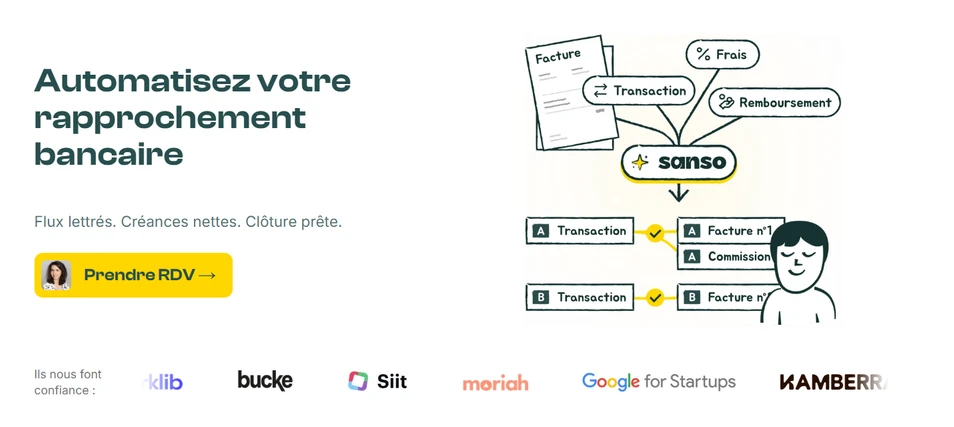
Sanso automates up to 95% of the financial operations it handles and assigns the remaining 5% to humans. Its agents match bank transactions with the corresponding invoices, fees, and credit memos. Ambiguous cases receive human review to avoid approving a match based solely on an identical amount.
Delegate bank reconciliation to Sanso
Reduce Excel file handling by delegating reconciliation and exception tracking within your existing financial tools.
Explore Sanso